
When to use this
Use this workflow when you want to assign a course to students. Most courses can be added right away, but in some cases you may need to request access before assigning a course.
Option 1: Add a course from Explore Courses
This option works well if you’re starting with the course you want to use.
- Log in to your teacher account.
- Click Explore Courses in the left navigation.
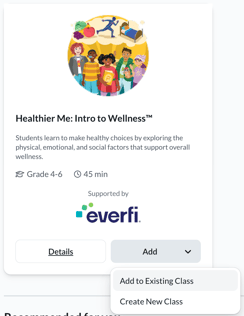
- Browse or search for the course you want to assign.
- On the course card, select Add.
- Choose one of the following:
- Add to Existing Class
Select a class you’ve already created. - Create New Class
Follow the prompts to create a new class and assign the course.
- Add to Existing Class
- Save your changes.
The course is added to the class and will be available to students.
Option 2: Add a course by editing an existing class
This option is helpful if your class is already set up and you want to add another course.
Click My Classes in the left navigation.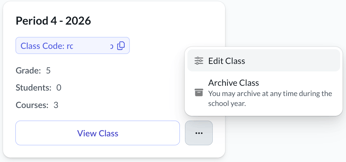
- Locate the class you want to update.
- Click the three‑dot menu on the class card and select Edit Class.
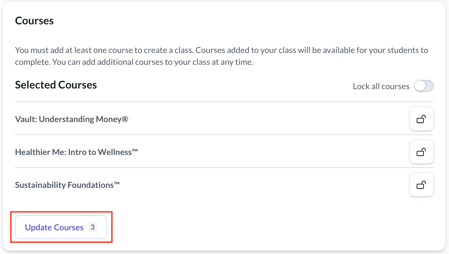
- Click Update Courses.
- Select the course you want to add.
- Click Save. The course is added to the class and will be available to students.
When you need to request a course
If a course is not yet available for your school, you may see Request Course instead of Add.
When you request a course: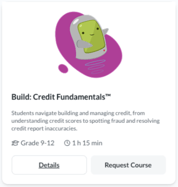
- The request is submitted for approval
- The course will show as Requested until it becomes available
- Once approved, you can add the course to a class
Note: Course requests are being updated to automatically become available in the future. If you don’t see a requested course become available, contact the Everfi Support team for help.
What students see
If they've already registered for the class you added courses to, the next time students log in, they’ll see the newly added course.