
How teachers add students to a class
Teachers can add students to a class in different ways, depending on when students are added and how the class is set up.
Add existing students to your class
The methods in this article are designed for students who do not already have an Everfi account.
If a student already has an existing Everfi account, do not create a new account for them. Instead, have the student:
- Log in to their existing Everfi account
- Enter your class code
- Join the class themselves
Creating a second account may prevent the student from accessing their existing progress and course history.
You may add students:
- To an existing class
- While creating a new class
- From within a class or from the My Students page (non‑rostered classes only)
The steps vary based on when you add students and how many students you are adding.
Adding students to an existing class
You can add students to an existing class at any time.
Add students from a class
Use this option when you are already working inside a specific class.
To add students from a class:
- Go to My Classes
- Locate the class you want to update and select View Class
- Open the Actions menu
- Select Add Students
You will then choose how you want to add students:
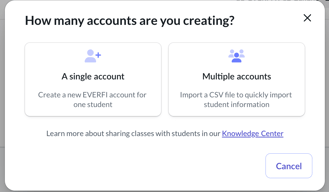
- Create a single account
- Create multiple accounts
Creating individual student accounts for new students
Use this option to add students one at a time. This works well for younger students or students who do not use email.
To create an individual student account: 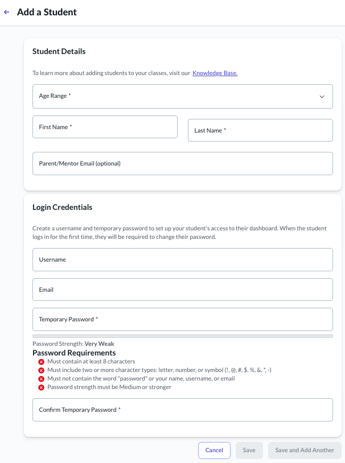
- Select A single account.
- Confirm the class you’re adding the student to.
- In the Student Details section, enter:
- Age range
- First name
- Last name
- For students under 13, only the last initial is displayed
- Optional parent or mentor email
- In the Login Credentials section, create:
- A username
- A temporary password
Students must change their password the first time they log in.
Password requirements:
- At least eight characters
- Must include at least two of the following:
- A letter
- A number
- A symbol
- Must not include the student’s name or the word “password”
- Select:
- Save to finish, or
- Save and Add Another to continue adding students
After saving, the student appears in your class roster. You can share their login information when you’re ready.
Importing multiple new student accounts
Use this option to add many students at once using a spreadsheet.
To import multiple students: 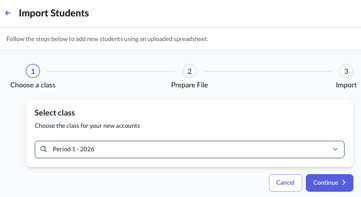
- Select Create Multiple Accounts
- Choose the class you are adding students to
- Download the sample CSV file
- Prepare your CSV using the required headers and formatting
- Upload the completed file
- Select Submit to start the import
Once the upload is complete, students are added to the class roster.
Having trouble uploading your CSV?
See Student CSV Upload Troubleshooting Guide for help resolving common formatting issues
Add students from My Students (non‑rostered classes)
If you manage non‑rostered classes, you can also add students from the My Students page.
From My Students, you can:
- Add individual students
- Upload multiple students using a CSV file
This option allows you to manage students without opening each class individually.
Students added from My Students must still be associated with a class. Once added, they:
- Appear in the class roster
- Gain access to assigned course content
Adding students when creating a new class
When you finish creating a new class, you’re prompted to choose how students will join.
You’ll see three options: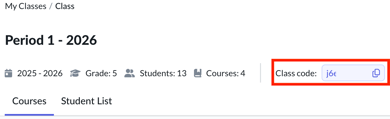
- Share class code
Students enter the code to join the class on their own - Create individual accounts
You manually create student accounts - Import class roster
Upload a spreadsheet to add students in bulk
You can choose the option that works best for your class and add more students later if needed.
If students already have Everfi accounts, choose Share class code and have students join the class using their existing accounts. Use Create individual accounts or Import class roster only when creating new student accounts.
After students are added
Once students are added:
- They appear in the class roster
- They gain access to assigned course content
- You can track progress and scores in the Gradebook
To learn how to remove students, restore access, or understand how student progress works, see: