
How standard classes work
Does your school use Clever or ClassLink SSO? See: Creating Classes for SSO Teachers
Step 1: Log in to your teacher account
Log in using your email and password. After logging in, you will land on My Classes.
Step 2: Create a class
From My Classes: 
- Select Create Class
- You are taken to the Create Class page
Step 3: Enter class information
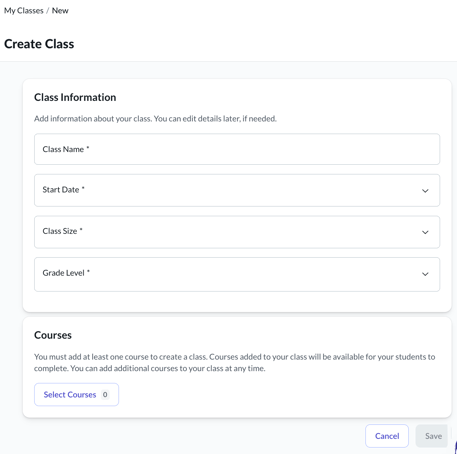
On the Create Class page:
- Enter a class name that students will recognize
- Complete any additional required fields
You can update most class details later if needed.
Step 4: Add courses to the class
In the Courses section:
- Select Select Courses
- Choose one or more courses to add
- Click the purple Select Courses button to save your selection
All selected courses will be available to students in this class.
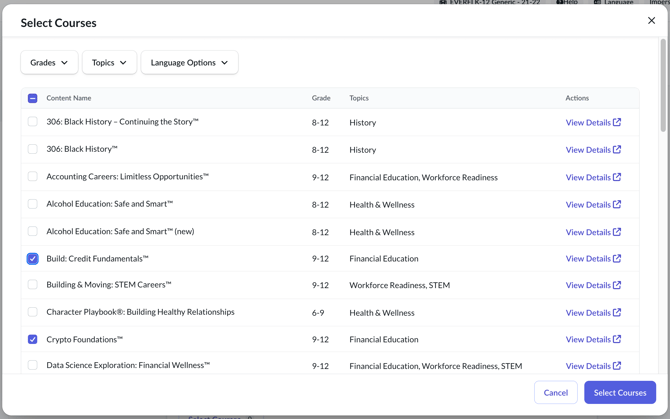
Tip: Once you select your courses, you may notice the lock icons next to each course. These icons help you control when your students see each course. To learn more, visit: Locking and Unlocking Courses.
Step 5: Create the class
Once class information and courses are added:
- Select Create Class
After creating the class, a window appears asking how you would like to add students to your class.
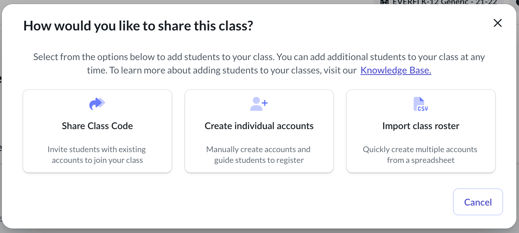
Step 6: Choose how to add students
From this window, you can choose one of the following options:
- Share Class Code
Invite students to join using the class registration code - Create individual accounts
Manually create student accounts and guide them through setup - Import class roster
Upload multiple students at once using a spreadsheet
About sharing the class code
Most teachers use the Share Class Code option.
- Copy the class code shown
- Share it directly with students: on your whiteboard, on a handout, in an email, etc.
- Students enter the code to join your class and access assigned courses
What to expect
- Students appear in your class after they join using the code
- You can add or remove courses later
- Student progress is tracked within the class
Things to keep in mind
- Students must enter the registration code exactly as provided
- Courses become available after students join the class
- Each class is managed separately
-
To change a student’s class, remove them from the current class and have them join the new class using a registration code. See: Managing Students in Your Class.
Need help?
If students are unable to join or you do not see your course:
- Confirm the registration code is correct
- Ask students to log out and back in after joining
If issues continue, contact Support.