
When teachers edit or add grades
In most cases, student scores are recorded automatically when students complete an assessment. In some situations, you may need to manually add or edit a grade.
Common reasons to edit or add a grade include:
- A student experienced technical issues during an assessment
- You need to correct an incorrect or missing score
- You want to help a student move past a difficult assessment
- You need to manually update an assessment score
Manually editing grades helps ensure student records accurately reflect progress and completion.
Where grade editing happens
Grades are edited from a student’s Student Details page.
From Student Details, teachers open a specific course and then view the student’s grades for that course. Grade editing is done at the individual student and course level, not from a class-wide Gradebook view.
Each edit applies only to the selected student and the selected assessment.
How to add or edit a grade
To update a student’s score:
- Go to My Students
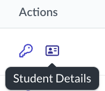
- Click the Student Details icon next to the student to open their Student Details
- In the Courses list, locate the course you want to review
- Select the View Course arrow in the Actions column
- On the course page, select View Grades
- Locate the assessment you want to update
- Select the pencil icon next to the grade
- Choose the score you want to apply and save the change
The updated score is saved to the student’s record.
Alternate way to access Student Details
You can also access Student Details from within a class:
- Go to My Classes
- Click View Class
- Open the Student List tab
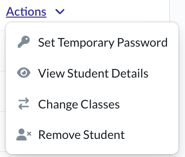
- In the Actions menu next to the student’s name, select View Student Details
- Follow the steps above to open the course and then select View Grades
Both paths lead to the same Student Details and grade editing experience.
What happens after you add a grade
When you add or edit a grade:
- The student’s record updates immediately
- The most recent score is reflected in progress and completion status
- Previous attempts remain visible
This ensures grading history is preserved while allowing corrections or updates when needed.
Things to keep in mind
Before editing a grade:
- Always confirm you’re updating the correct student, course, and assessment
- Manual grade edits should be used only when appropriate
Using this feature carefully helps keep student data clear and accurate.
Related articles
You may also want to review: