
When teachers edit or add grades
In most cases, assessment scores are recorded automatically when students complete course activities.
You may need to add or edit a grade when:
- A student experienced technical issues during an assessment.
- A score was recorded incorrectly.
- A score is missing and needs to be entered manually.
- An assessment score needs to be updated.
Where grade editing happens
Grade changes are made from a student's Grade Details page.
You can access Grade Details from:
- My Students
- My Classes
- Gradebook
Regardless of how you access the student record, grade edits are completed from the student's Grade Details page.
How to add or edit a grade
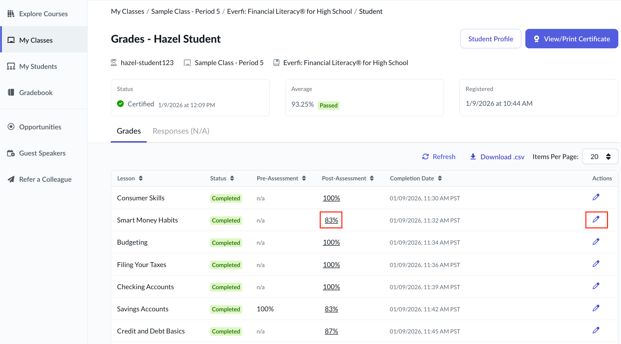
- Open the student's Grade Details page.
- Select the course you want to review.
- Select View Grades.
- Locate the assessment you want to update.
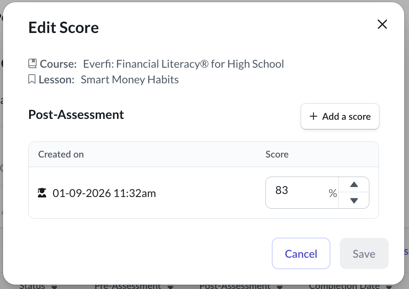
- Select the pencil icon in the actions column next to the score.
- Choose the score you want to apply.
- Save your changes. The updated score is automatically saved to the student's record.
What happens after you add or edit a grade
When you save a grade change:
- The student's record updates immediately.
- Updated scores appear throughout reporting views.
- Progress and completion information may update based on the new score.
Things to keep in mind
- Confirm you are updating the correct student, course, and assessment.
- Use manual grade edits only when appropriate.
- Grade edits affect only the selected student and assessment.
- Changes are reflected immediately after they are saved.
Related articles
You may also want to review: