
When to use this
Use this workflow when you need to update a student’s basic information, such as correcting their name or updating their age range.
Student information is managed from the Student Details page. Other student actions—such as changing classes, removing students, or resetting passwords—are covered in separate articles.
What information you can edit
From the Edit Student page, teachers can typically update:
- Age range
- First name
- Last name
- Parent or mentor email (optional)
Some fields may appear as read‑only depending on how the student account was created (for example, if the student is rostered through Clever or ClassLink).
If a field cannot be edited, it will appear disabled on the Edit Student page.
How to edit student information
The most direct way to update student information is from My Students.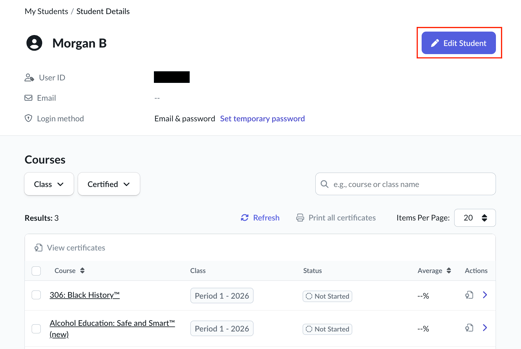
- Log in to your Everfi teacher dashboard.
- Click My Students in the left navigation.
- Select the student’s name to open Student Details.
- Click Edit Student.
- Update the student’s information.
- Click Save.
Your changes update immediately.
Alternate way to access Student Details
You can also reach the Student Details page from within a class:
- Go to My Classes.
- Select a class.
- Open the Student List tab.
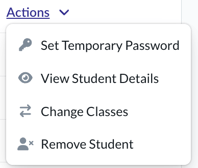
- In the Actions menu next to a student’s name, select View Student Details.
- Click Edit Student.
This path leads to the same Edit Student page.
If you can’t edit a student’s information
If you’re unable to edit certain fields:
- The student may be managed through a district rostering system
- The information may be controlled by your school or district
In these cases, contact your school administrator or Everfi Support for help updating the student’s record.