
When to use this
Use locking and unlocking when you want to control course visibility within a class without removing the class itself.
This is helpful when you:
- Want to pace instruction across multiple courses
- Are not ready for students to begin a course yet
- Accidentally added a course but may want to use it later
If you want to remove the entire class from both your view and student dashboards, use archiving instead.
What locking and unlocking does
Locking and unlocking applies to individual courses, not the entire class.
-
Unlocked courses
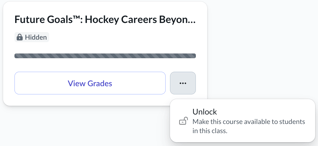
- Appear on the student dashboard
- Appear in your Gradebook
-
Locked courses
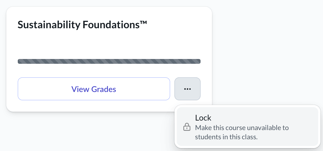
- Are hidden from students
- Do not display a Gradebook while locked
If you lock a course that students have already started:
- Students temporarily lose access to the course
- Existing progress and grades are preserved
When you unlock the course again, students pick up where they left off and progress reappears in the Gradebook.
Locking courses vs archiving a class
These two options serve different purposes:
-
Lock a course
Keeps the class active while hiding selected courses from students -
Archive a class
Removes the entire class and all courses from student access
If you only need to manage timing or pacing, locking courses is usually the better choice.
Where you can lock and unlock courses
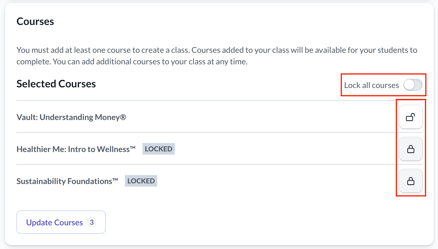
You can lock or unlock courses while managing your class, including:
-
When creating a class
- Choose whether each course starts locked or unlocked
-
When adding courses to an existing class
- Adjust lock settings before saving
-
When editing a class
- Update course visibility at any time
- Update course visibility at any time
Locked courses are visually marked so you can easily see which courses are hidden.
What students experience
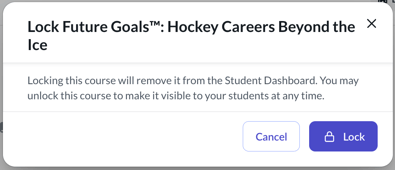
- Locked courses do not appear on the student dashboard
- Unlocked courses appear as soon as they are available
- Students do not lose progress when a course is locked and unlocked later
Related articles
- Archived Classes
Learn how to archive an entire class when it is no longer needed