
Sometimes a class may seem to be missing from your dashboard, but in most cases it has simply been hidden. Hiding is often used when a teacher creates a class by mistake or no longer needs to see it—because it functions as the closest option to deleting a class.
Important Notes About Hidden Classes
- Hiding a class only affects your view as the teacher.
- Students can still access the courses in a hidden class if they already have the registration code or are already enrolled.
- If you want to prevent students from continuing in those courses, you’ll need to lock the courses within the class rather than hide the class itself.
How to Unhide a Class
- Log in to your Teacher Site.
- Open the My Classes tab.
- In the upper‑right corner, change the filter to Show All Classes. This will display any classes you previously hid.
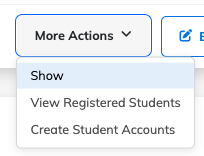
- Find the class you want to restore, click More actions, then select Show.
- This un-hides the class so it appears normally again without needing to adjust filters.
If you're still unable to locate a class, contact Support and provide any details you remember (class name, course used, approximate creation date).
What Happens When a Class Is Hidden
- Hidden classes won’t appear in your Gradebook or in your default My Classes view.
- Students can continue accessing the assigned courses unless those courses are locked.