
Welcome to your new teacher dashboard. We’ve updated the experience to bring your classes, student progress, and key classroom tools into one more streamlined space.
If things look a little different, that is expected. This article will help you quickly find common tools, understand what changed, and get back to teaching with confidence.
What changed in the new dashboard
Looking for grades
If you are trying to find grades, start in My Classes.
- Select My Classes from the left navigation
- Open the class you want to review
- Select Grades and Progress to view student performance for that class
If you used the classic dashboard before, this is the biggest change to be aware of. Grades are no longer accessed from a separate Gradebook tab.
Where to find student activity details
Some student progress details are still available in the new dashboard, but they may appear in a different place than before.
To review student-level activity details:
- Go to My Students
- Select the student you want to review
- View module-level progress information for that student
If you are looking for detailed timing information, you may now need to check the student view instead of the class grade view.
What is different from the classic experience
The new dashboard keeps the same core workflows, but the path to some tools has changed.
Here are the biggest differences:
- Grades and progress are now accessed from within each class
- Student activity details may appear in the student view rather than the class view
- Classes, students, and progress tracking are now more closely connected throughout the dashboard
If you previously used the Gradebook tab as your starting point, you will now begin in My Classes instead.
Common Questions
How do I access grades?
- Select My Classes from the left navigation.
- Find the class you want to review.
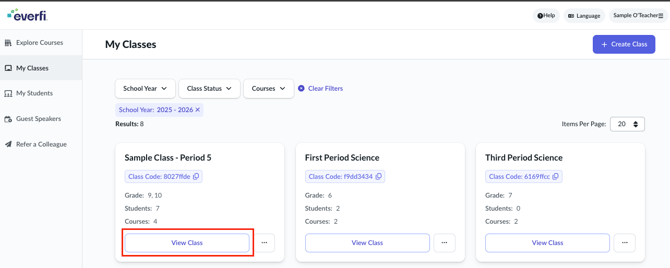
- Select View Grades to see student performance for a particular course.
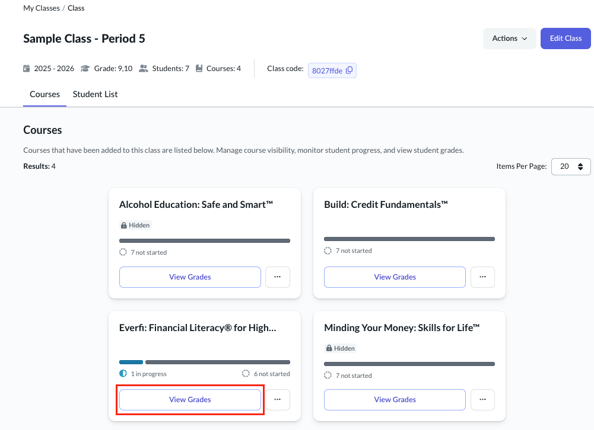
To learn more about Grades, see: Viewing Grades for a Course
Where do I go to review student progress
You can review class-level progress from within a class. For more detailed student-level activity, go to My Students and open the student record.
For more information, see: Managing Students in Your Class.
Why does the dashboard look different
The new dashboard is designed to bring more classroom tools into one connected class-first experience so it is easier to manage classes, students, and progress in one place.
Why don’t you show last names in the gradebook
We follow the Children’s Online Privacy Protection Act, or COPPA, which affects how student information is displayed.
To help distinguish between students, we recommend using usernames when needed.
How do I reset a student password
- Go to My Students
- Find the student who needs a new password
- Select the key icon in the Actions column
- Create and save a temporary password
- Share the temporary password with the student so the student can sign in
To learn more, see: Resetting a Student’s Password.