
Why preview a course
Previewing a course allows you to:
- Explore lessons and activities
- Understand how content is presented to students
- Review course structure before adding it to a class
Ways to preview a course
There are multiple ways to preview course content depending on what you want to review.
Preview a full course from Explore Courses
From Explore Courses, locate the course you want to review.
- Select the play icon on the course card
This opens the full course in preview mode so you can experience it as a student.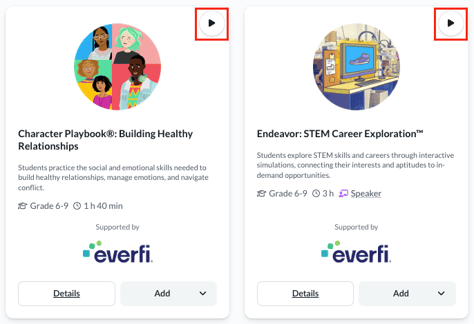
Preview a full course from the course details page
You can also preview a course from its details page:
- Go to Explore Courses
- Select Details on the course card
- Select Preview Course in the top right
![Course details page with Preview Course button highlighted]](https://support.everfi.com/hs-fs/hubfs/Screenshot%202026-05-26%20at%2010.55.01%20AM.png?width=670&height=284&name=Screenshot%202026-05-26%20at%2010.55.01%20AM.png)
Preview individual lessons
If you want to review a specific part of a course:
- Go to Explore Courses
- Select Details on the course card
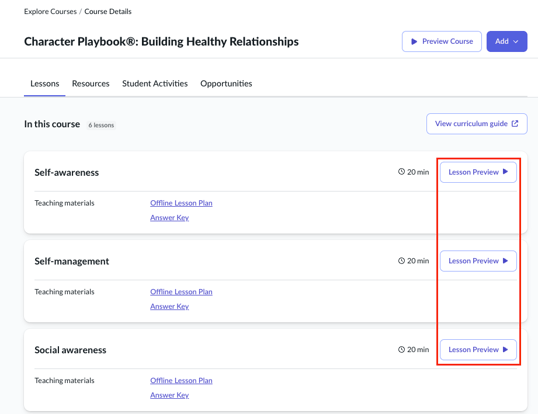
- Open the Lessons tab
- Select Lesson Preview next to a lesson
This allows you to focus on a single lesson instead of the entire course.
What to expect in preview mode
In preview mode, you can:
- Navigate through lessons and activities
- Review content from a student perspective
- Explore course structure
Important
- Progress is not saved in preview mode
- Assessments and completion do not count toward student data, you will not receive a certificate of completion for completing a course in 'Preview' mode
- Preview mode is for exploration only