
The New Teacher Dashboard gives you a streamlined way to manage students at the class level. In this view, you can remove a student from your class or add them back if needed.
The former “Hide Student” action in the Classic Teacher Dashboard is not available in the new experience.
Remove a Student from Your Class
Removing a student takes them out of the class completely. Removed students will not appear in your Student List, Gradebook, or progress views. They also cannot rejoin the class using the class code unless you add them back.
How to Remove a Student
- Go to My Classes.
- Select the class you want to update.
- Open the Student List tab.
- Find the student you want to remove.
- Open the Actions menu.
- Select Remove Student.
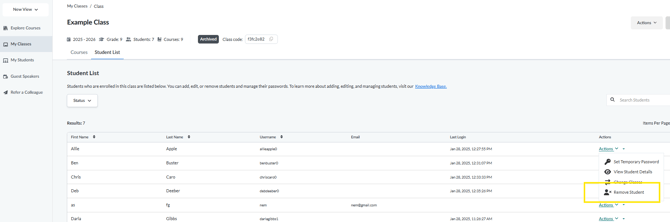
After you remove a student, they no longer have access to the class. If they try to rejoin using the class code, they’ll see a message directing them to contact you to be reactivated.
Recover (Add Back) a Removed Student
If you removed a student by accident or need to restore their access, you can add them back to your class at any time. Students cannot rejoin on their own—you must re‑add them.
How to Recover a Removed Student
- Go to My Classes.
- Select the correct class and click the View Class button
- Open the Student List tab
- Locate the Status filter called "Hide Removed Students" at the top left and make sure it is turned OFF
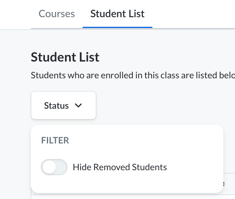
- Locate the student that you want to recover. You will see a "REMOVED" tag next to their username if they have been removed
- Click on the Actions link un the Actions column next to the name of this student and click on Reactivate Student
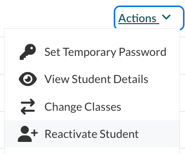
- The student will immediately appear back in your student list in the class.
Once added back, the student will appear in your Student List and regain access to all active course content in the class.
Why the “Hide Student” Feature Was Removed
The New Teacher Dashboard uses a class‑first design. Instead of hiding individual course enrollments, the platform now keeps student management consistent and simple:
- Students are either in your class, or
- Removed and can be added back by you.
This update helps teachers manage classes more clearly and prevents mismatched student enrollment states between Classic and the New Teacher Dashboard.