
Preview a course without saving progress
If you want to explore a course before assigning it to students, use Preview Course from the Course Details page.
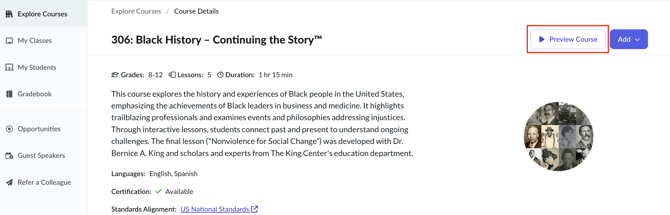
Preview mode lets you experience the course content, activities, and lesson flow from a student perspective. However, your progress and assessment results do not save, and completing a course in preview mode does not earn certification.
Use preview mode when you want to review the course rather than complete it yourself.
Take a course with saved progress
If you want to complete a course as a learner and have your progress save, create a student account and join one of your own classes.
To get started:
- Create a student account from the Everfi registration page.
- Select Student.
- Enter the same class code you provide to your students.
- Complete the registration process and sign in to your student account.
- Open the assigned course and begin learning.
Your progress will save to the student account as you work through the course.
Use your student account again
You can continue using the same student account to take other Everfi courses.
If you want to join another class or take another course, enter the appropriate class code from your student dashboard. The assigned course will then be available from your student account, and your progress will save as you complete it.