
Who this applies to
Some educators use Everfi without being assigned official Clever or ClassLink sections. This is common for:
- After‑school teachers
- Interventionists or specialists
- Counselors
- Co‑teachers or support staff
If you do not have rostered sections tied to your name, you can still create a class and give students access to courses.
When to use a custom class
Use a custom class if:
- You support students but are not rostered in Clever or ClassLink
- No sections appear when you attempt to create a class
- Students need access through a class code instead of an SSO roster
Important:
If you are a traditional classroom teacher and are waiting for your Clever or ClassLink sections to sync, do not create a custom class. Work with your district to complete rostering instead.
What you can do without rostered sections
When you use a custom class, you can:
- Create a class without selecting a Clever or ClassLink section
- Generate a class registration code to share with students
- Assign courses to the class
- Monitor student progress and completion
How to create a custom class
To create a class without rostered sections:
- Log in to your teacher account
- Go to My Classes and start creating a new class
- When no sections appear, choose the option to create a custom class
- Enter the class name and any required details
- Add one or more courses
- Create the class
After the class is created, copy the class registration code and share it with students.
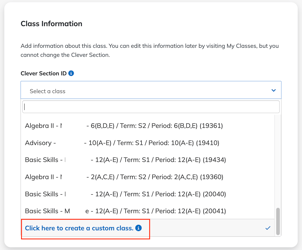
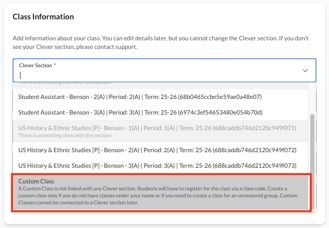
Students join by entering the class code when they log in. Once they start a course, their names and progress appear in the class.
Best practices for custom classes
-
Name classes clearly
Include the purpose, program, or timeframe (for example, “After‑School Financial Literacy – Grade 8 – Spring”). -
Keep custom and rostered classes separate
Do not use custom classes as placeholders while waiting for Clever or ClassLink rostering. -
Plan for continuity
If your district later assigns rostered sections, continue using the rostered class going forward instead of trying to merge classes.
Frequently asked questions
Can I merge a custom class with a rostered Clever or ClassLink class later?
No. Custom classes and rostered classes cannot be merged.
Can students who normally use Clever or ClassLink join a custom class?
Yes. Students can join a custom class by entering the class code, even if they typically sign in through Clever or ClassLink.
Can I manually add students to a rostered class?
No. Rostered classes are managed through district syncing. Roster changes must be made by your district administrator.
When to contact your district vs Everfi Support
Contact your district if:
- You are a rostered teacher and need sections created, edited, or corrected in Clever or ClassLink
Contact Everfi Support if:
- You are an educator without rostered sections
- You need help creating or managing a custom class