
How To Switch Schools
-
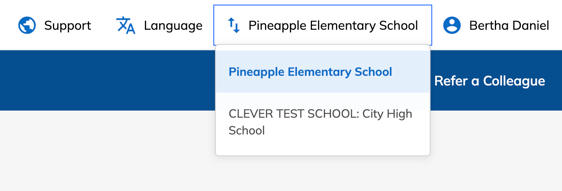
At the top of your Teacher Site, look to the left of your name to find the school you are currently viewing. A small dropdown arrow will appear beside the school name.
-
Select the dropdown to choose another school.
When you switch schools, you’ll see the classes and students associated with that location.
How School Access Works
A nightly sync brings updated roster information from your district to Clever or ClassLink. If you were listed as the primary teacher at multiple schools during the initial sync, you will automatically see all of those schools in your dropdown.
If You Need Access to an Additional School
If you were not linked to a school during the initial sync, contact Support and include:
- The name of the school
- The city and state
Once Support adds the school, it will appear in your dropdown after the next sync.