
What course certifications are
All Everfi courses include a certificate of completion.
A certificate becomes available when a student completes all required course content and reaches a Certified status. Certificates are generated as PDF files and confirm successful course completion.
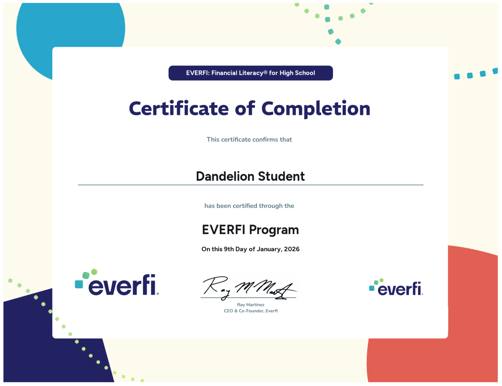
Where learners access their certificates
When a learner completes a course, their certificate becomes available on the Learner Dashboard.
Learners can:
- View their certificate
- Download a PDF copy
- Save or print the certificate for their records
If a learner has completed a course but does not see a certificate, they should contact Support and include the course name.
Where teachers access student certificates
Teachers can access certificate information from Grades and Progress within a class.
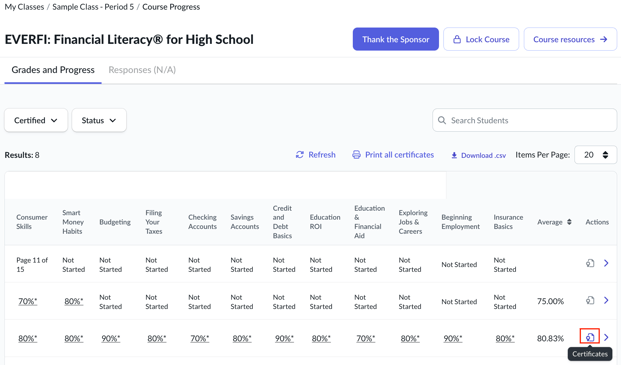
To get there:
- Go to My Classes
- Select the class you're focusing on
- Select the course
- Open Grades and Progress
Certificate availability is always tied to the selected class and course.
When certificates are available
Teachers can access certificates only for students who have reached a Certified status.
Certificates are not available for:
- Students who have not completed the course
- Students who are still in progress
- Archived classes or past implementation periods
Printing certificates
Teachers can print certificates for certified students individually or in bulk.
Things to Keep in Mind
- Certificates are available only after a student reaches Certified status
- Certificate availability depends on course completion and certification status
- Learners can download their own certificates directly from their dashboard
- Teachers can access certificates only within the selected class and course
For step-by-step instructions, see: Printing Student Certificates