
Before You Begin
Certificates are available only for students who have reached a Certified status. If a student has not reached Certified status, certificate printing options will not be available.
Print certificates from Grades & Progress
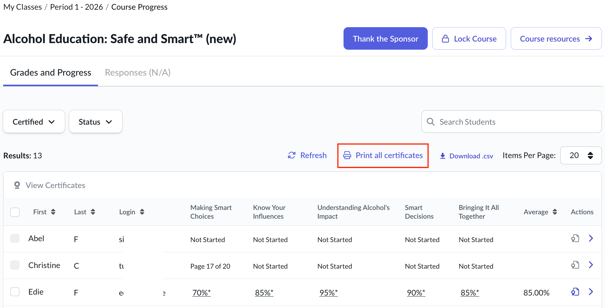
Use this option when you want to print certificates for students in a specific class and course.
- Go to My Classes.
- Select the class you want to review.
- Select the course.
- Open Grades & Progress.
From here, you can:
- Print certificates for individual certified students.
- Print all certificates for certified students in the selected class and course.
Print certificates from Gradebook
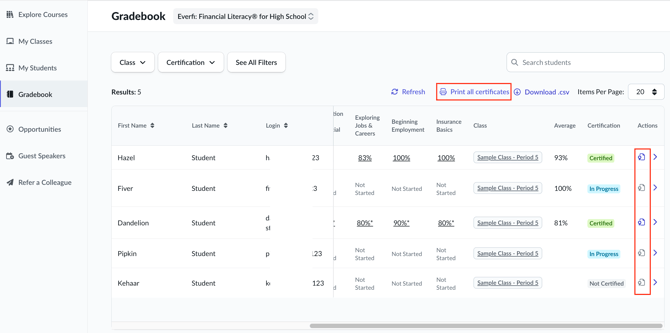
Use this option when you need to review or print certificates across multiple classes.
- Select Gradebook from the navigation menu.
- Select the curriculum you want to review.
- Use filters such as:
- Class
- Certification Status
- School Year
- Locate the student or group of students you want to review.
From Gradebook, you can:
- Print an individual student's certificate from the Actions column.
- Select Print All Certificates to download certificates for eligible students in the current view.
Print an individual certificate
To print a certificate for a specific student:
- Locate the student in Grades & Progress or Gradebook.
- Select the certificate option in the Actions column.
- Open the certificate PDF.
- Print or save the certificate as needed.
The certificate opens in a new browser tab as a PDF file.
Print certificates in bulk
To print certificates for multiple students:
- Open Grades & Progress or Gradebook.
- Confirm that at least one student has a Certified status.
- Select Print All Certificates.
Only certificates for certified students are included in the download.
What to expect when printing
When printing certificates:
- Certificates open as PDF files.
- Files open in a new browser tab.
- Each certificate includes the student's name and course information.
- Printing and saving options may vary depending on your browser settings.
For best results, review your print settings before printing.
Troubleshooting
If certificate options are not available:
- Confirm the student has reached Certified status.
- Confirm you are viewing the correct class, course, or curriculum.
- Verify that at least one certified student exists when using Print All Certificates.
- Refresh the page and try again.
To learn more about certification requirements and certificate availability, see: Student Course Certifications