
What editing a class means
Editing a class allows you to update certain class details after the class has been created.
What you can edit depends on:
- How the class was created
- Whether the class is linked to Clever or ClassLink
Some class details are editable at any time, while others are locked once the class is created.
Where to edit a class
Class editing is done from My Classes.
To edit a class: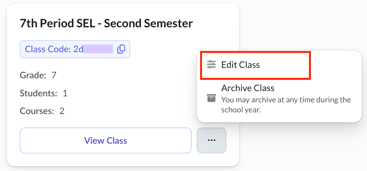
- Go to My Classes
- Locate the class you want to update
- Open the class options menu
- Select the option to edit the class
This opens the class details page where available fields can be updated.
What you can edit for any class
For all classes, you can:
- Update the class name
- Edit other class details that are shown as editable. Often:
- Class Name (if not SSO)
- Start Date
- Class Size
- Grade Level
- Adding Courses
- Locking/Unlocking Courses
Any changes you save apply immediately.
Editing classes linked to Clever or ClassLink
If a class is linked to Clever or ClassLink, some details are managed by your district’s system.
For these classes:
- You can update the class name and other editable fields
- You cannot change the Clever or ClassLink section once the class is created
- Student rosters continue to sync automatically
If a class needs to be linked to a different section, you must create a new class using the correct section.
What cannot be changed after a class is created
After creation:
- The Clever or ClassLink section cannot be changed
- A class linked to Clever or ClassLink cannot be converted into a custom class
These restrictions help keep class rosters aligned with district data.
When to edit a class versus create a new one
Edit a class when:
- You need to rename the class
- You are updating editable class details
Create a new class when:
- The class needs to be linked to a different Clever or ClassLink section
- The wrong section was selected during setup
Things to keep in mind
- Changes to editable fields take effect immediately
- Editing a class does not affect student progress or grades
- Rostered classes remain synced with Clever or ClassLink
Related articles
You may also want to review: