
How SSO classes work
When your school uses single sign‑on (SSO), class rosters come directly from your district’s student information system through Clever or ClassLink.
This means:
- You do not manually add students, you do not need a registration or class code
- Class sections shared through SSO appear when you create a class
- Student rosters stay aligned with your district system
Step 1: Log in through your SSO provider
Log in using your district’s SSO system.
- Open Clever or ClassLink
- Select the Everfi app
Step 2: Go to My Classes and create a class
After logging in, you land on My Classes. 
To begin:
- From My Classes, select the Create Class button to create a new class
- You are taken to the Create Class page
Step 3: Select your Clever or ClassLink section
On the Create Class page, locate the Clever Section field.
- Open the Clever Section dropdown
- Select the section shared with Everfi through your district system
The dropdown shows section details such as: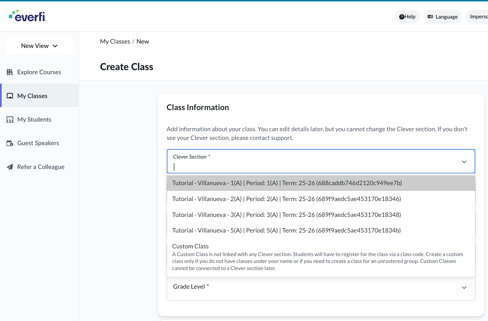
- Section name
- Period
- Term
- A unique identifier in parentheses
Important: Once a Clever or ClassLink section is selected, it cannot be changed later.
If you do not see the correct section, contact Support before creating the class.
Step 4: Enter class information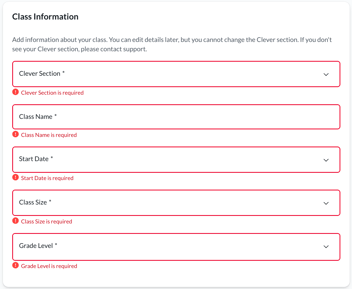
After selecting a section:
- Enter the class name
- Complete any additional required fields shown on screen
You can edit most class details later, but the Clever or ClassLink section cannot be changed.
Step 5: Add courses to the class
In the Courses section:
- Select Select Courses
- Choose at least one course to add to the class
You can add or remove courses later as needed.
Step 6: Create the class
After class information and courses are added:
- Select Create Class to finish setup
Your class now appears under My Classes, and student rosters load automatically from SSO. No registration codes are needed.
If you see multiple sections
Some districts share more than one section with Everfi.
When this happens:
- You may see several sections listed in the Clever Section dropdown
- Select only the section you want to use for that class
- Create additional classes later for other sections if needed
How to read SSO section IDs
Under each class name, you may see a long identifier.
- The number in parentheses is the section ID
- This ID comes directly from Clever or ClassLink
- It helps match the class to your district’s system
If you do not have rostered sections
If you need students to access a course but do not have rostered sections (for example, substitutes, counselors, or after‑school programs), you should not select a Clever or ClassLink section.
Instead, choose Custom Class from the Clever Section dropdown or see the Creating Custom Cohorts article for guidance