
Table of contents
- How student management works
- Adding students to a class
- Removing a student from a class
- Changing a student's class
- Restoring a removed student
- What happens to student access and progress
- Why hiding students is no longer available
- Important notes for SSO teachers
How student management works
Student management happens at the class level.
Each student is either:
- In your class, or
- Removed from your class
There is no hidden, paused, or partial state. What you see in your class reflects exactly what students can access.
From your classes, you can:
- Add students
- Remove students
- Change a student's class
- Restore access if a student was removed by mistake
This approach helps keep student access, progress, and class records clear and consistent.
Adding students to a class
You can add students directly from inside a class.
From the Student List in a class, you can add students by entering their information or sharing the class code.
Once added, students:
- Appear in your Student List
- Gain access to all active course content in the class
Add students from My Students (non‑rostered classes)
If you manage non‑rostered classes, you can also add students from the My Students page.
From My Students, you can:
- Add individual students
- Upload multiple students at once using a CSV file
This option can save time by letting you manage students without opening each class.
Students added from My Students still need to be associated with a class. Once added, they:
- Appear in the Student List for the class
- Gain access to all active course content
Interesting in learning more about adding students to your class? See: Adding Students to a Class
Removing a student from a class
Removing a student takes them out of the class completely. Learn more at: Removing Students from a Class.
When a student is removed:
- They no longer appear in your Student List
- They lose access to all course content in that class
- They cannot rejoin the class on their own using the class code
You may want to remove a student when:
- A student is no longer in your class
- A student joined the wrong class
- You need to correct class enrollment
To remove a student:
- Go to My Classes.
- Click View Class to select the class you want to update.
- Open the Student List.
- Find the student you want to remove.
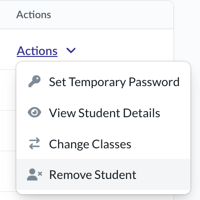
- Open the Actions menu next to their name.
- Select Remove Student.
The student is removed immediately.
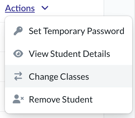 If a student is in the wrong class, use the Change Classes option in the Actions menu to move them instead of removing and re-adding them.
- Change a student's class
- Restore access if a student was removed by mistake
This approach helps keep student access, progress, and class records clear and consistent.
Changing a student's class
If a student joins the wrong class or changes class periods during the school year, you can move them to a different class instead of removing and re-adding them. The change classes option allows you to update a student's class assignment while helping preserve their learning progress.
To change a student's class:
- Go to My Classes.
- Open the class that currently contains the student.
- Click the Student List tab.
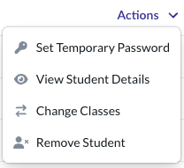
- Find the student you want to move and open the Actions menu next to their name.
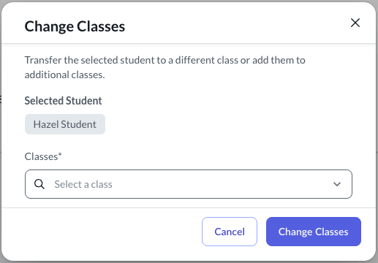
- Select Change Classes.
- Select the class you want to move the student to and click the Change Classes button to finalize the move.
Restoring a removed student
If a student was removed by mistake or needs access again, you can restore them at any time.
Students cannot rejoin a class on their own after being removed. A teacher must restore their access. If a student tries to rejoin with the class code after being removed, they’ll be prompted to contact their teacher.
To restore a removed student:
- Go to My Classes and open the class.
- Open the Student List.
- Adjust the filter to show removed students.
- Locate the student marked as Removed.
- Open the Actions menu and select Reactivate Student.
The student immediately regains access to the class and its active course content.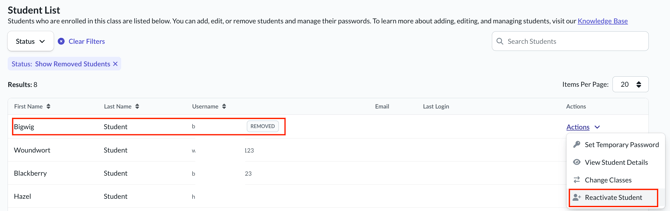
To learn more about restoring students, see: Restoring a Removed Student.
What happens to student access and progress
When a student is removed from a class:
- They lose access to the class and its courses
- Their progress and scores are no longer visible in that class
When a student is restored:
- They regain access to the class
- Their previous progress and scores become available again
This ensures student data is preserved while keeping class access accurate.
Why hiding students is no longer available
The option to hide or unhide students is no longer available.
Student access is now managed at the class level. This means:
- Students are either active in a class or removed
- There is no hidden state that can cause confusion
- Student access matches what both teachers and students see
This change helps prevent issues like:
- Students appearing in multiple classes unintentionally
- Progress showing under the wrong class or teacher
- Confusing enrollment states
Important notes for SSO teachers
If your school uses Clever or ClassLink, student management may work a little differently due to district rostering rules.
In these cases:
- Class membership may be managed by the rostering system
- Some actions may be limited or behave differently
- Missing students or classes may be related to roster sync timing