
Each school year in Everfi includes an implementation period. This period helps you begin with a clean dashboard for the new school year, while maintaining access to your previous classes and instructional data.
School year dates may change over time. The dates listed in this article reflect the summer of 2026.
What the Implementation Period Means
At the end of each school year, Everfi transitions into a new school year. During this transition:
- Classes from the previous school year are archived and removed from My Classes
- Students see completed work from the prior year in Past Courses instead of Current Courses
This process keeps your dashboard organized while preserving important records.
How the Annual School Year Transition Works
While specific dates may vary each year, the school year typically follows the same structure. For the 2026 timeline:
- The school year ends on June 26
- The new school year begins on June 27
- From June 27 through July 31, you can renew eligible classes from the previous school year
- After July 31, class renewal is no longer available
If you are working in Everfi after July 31, you must create new classes for the current school year.
Creating New Classes After the School Year Ends
When the school year ends:
- Classes from the prior school year do not carry over automatically
- Teachers can renew eligible classes during the implementation period until 7/31/26.
- After the renewal window closes on 7/31, teachers must create new classes
Creating new classes ensures student enrollment, progress tracking, and reporting align with the current school year. Need help creating classes? See: Creating Classes.
Class Renewal
Most standard Everfi classes can be renewed during the implementation period.
If a course has been updated with a new version, you may be required to create a new class instead of renewing a previous one. Updated courses must be added to newly created classes.
To renew a class from last year:
-
After 6/26/26 visit My Classes
-
Find the class you want to keep using and click View Class
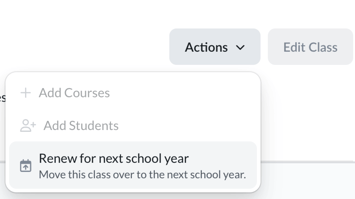
- Under the Actions menu at the top right, select the 'Renew for next school year' option. You will receive a confirmation message and can continue using that class in the new school year
Accessing Data From Previous School Years
Even if a class cannot be renewed:
- You can still view assessment scores from previous school years in My Classes by selecting the 2025-2026 school year filter.
- Students can still access completed coursework in Past Courses.
- Your instructional history remains available for reference and reporting
Best Practice
Archiving does not remove your data. It simply removes classes from active use. Reviewing archived classes and Gradebook information before creating new classes can help you plan instruction and maintain accurate records for the current school year.