
Why preview a course
Previewing a course lets you explore the content before adding it to a class. You can review lessons and activities, see how the content is presented to students, and get familiar with the course structure.
There are several ways to preview content depending on whether you want to explore an entire course or an individual lesson.
Preview a full course from Explore Courses
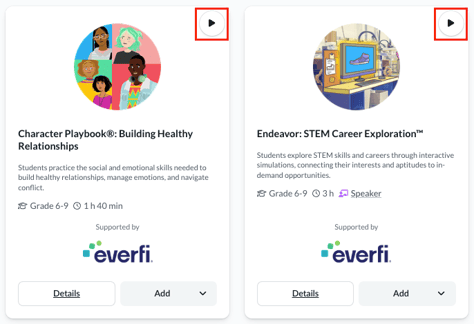
From Explore Courses, locate the course you want to review and select the play icon on the course card.
The course opens in preview mode so you can explore the content from a student perspective.
Preview a full course from the course details page
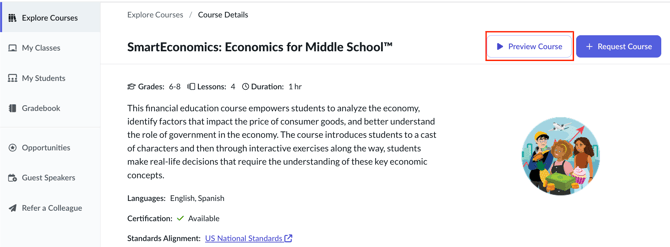
You can also launch a full course preview from the course details page:
- Go to Explore Courses.
- Select Details on the course card.
- Select Preview Course in the upper-right corner.
Preview an individual lesson
If you only want to review a specific lesson:
- Go to Explore Courses.
- Select Details on the course card.
- Open the Lessons tab.
- Select Lesson Preview next to the lesson you want to review.
This lets you explore an individual lesson without going through the entire course.
What to expect in preview mode
Preview mode is designed for exploring course content. You can move through lessons and activities and review the course from a student perspective, but your activity in preview mode is not saved.
Assessment results and course completion are also not recorded in preview mode, and completing a course in preview mode does not generate a certificate of completion. Preview activity is separate from student enrollment and does not affect student data.
Want to take the course and save your progress?
If you want to complete a course yourself and have your progress saved, you'll need to take the course as a student rather than use preview mode. See: Taking a Course as a Teacher and Saving Your Progress.
That keeps the distinction very simple: Preview if you want to review the content. Use a student account if you want your progress and completion saved.