
How restoring a student works
If a student was removed from your class, you can restore them at any time.
When you restore a student:
- They reappear in your class roster
- They regain access to all course content assigned to the class
- Their previous progress and scores are restored
Students cannot rejoin a class on their own after being removed. A teacher must restore their access.
When to restore a student
You may want to restore a student when:
- A student was removed by mistake
- A student returns to your class
- You need to give a previously enrolled student access again
Restore a removed student
You can restore a student from the Student List in your class.
To restore a student:
- Go to My Classes
- Locate the class and select View Class
- Open the Student List
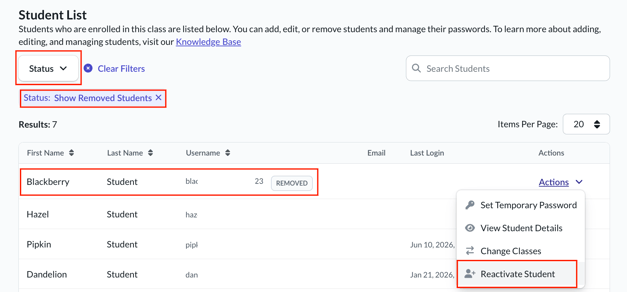
- Adjust the filter to show Removed students
- Find the student you want to restore
- Open the Actions menu next to their name
- Select Reactivate Student
The student is restored immediately.
What happens after restoring
Once restored:
- The student can access the class again
- Their previous course progress and scores become visible
- They can continue where they left off in assigned courses
If the class content has changed, the student will see the current assigned courses.
Important note for SSO teachers
If your school uses Clever or ClassLink, student enrollment may be managed by your district’s rostering system.
In these cases:
- You may not be able to manually restore students
- Access may depend on roster sync updates
If a student is missing or needs access restored, contact your school or district administrator to update the roster.
To remove a student or update your class roster, see: Removing Students from a Class
To learn more about general student management, see: Managing Students in Your Class