
If you’re looking for a class code
If your school uses Clever or ClassLink, students do not join your class using a class code. Instead:
- Students are automatically added to your class through your district’s roster
- Students will appear in your class after they log in through Clever or ClassLink for the first time
If a student is missing, the issue is usually related to login, rostering, or class visibility—not a missing class code.
Why students may not appear
If your school uses Clever or ClassLink, your class roster is managed by your district’s student information system (SIS).
This means:
- Students only appear if they are included in your assigned section
- Rosters sync automatically from your district
- Teachers cannot manually add students to a rostered class
If a student is missing, it is usually related to login, rostering, or class visibility.
Check whether the student has logged in
Students only appear in your class after they log in through Clever or ClassLink for the first time.
If a student is missing:
- Confirm the student has opened the Everfi app through your school’s Clever or ClassLink portal
- Ask the student to log in if they have not done so yet
Check whether the student is included in your roster
If the student has logged in and still does not appear, they may not be included in the roster shared with Everfi.
This can happen if the student:
- Recently joined the class
- Transferred schools
- Was added after the term began
In these cases:
- Contact your district administrator to review and update the Clever or ClassLink roster
- Roster changes must be made at the district level
Check whether the class is visible
If multiple students are not appearing, the issue may be with the class itself.
This can happen if:
- The class has been archived
- Filters or views are hiding the class
Review your class visibility settings to confirm the class is active and visible.
If a student needs immediate access
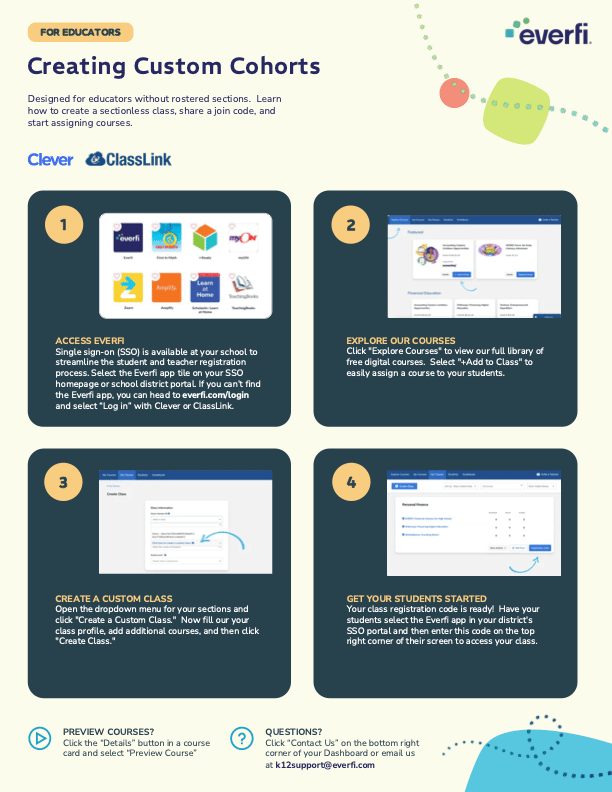
If a student needs access right away and cannot wait for a roster update, you can create a custom class.
A custom class allows students to:
- Join using a class code
- Access course content immediately
- Begin learning without waiting for district syncing
How to create a custom class
To create a custom class:
- Go to My Classes
- Select Create Class
- Choose the option to create a custom class (no section selected)
- Enter your class details
- Add one or more courses
- Create the class and share the class code with students
Students can enter the class code after logging in to join your class.
Important things to keep in mind
- You cannot manually add students to a Clever or ClassLink class
- Custom classes are separate from rostered classes
- Custom and rostered classes cannot be merged
- Students added through a custom class are not part of your SSO roster
- If a student is later added to your official section, they will appear automatically after syncing
When to use each option
- Ask your district to update the roster if the student should be in your class
- Use a custom class only if the student needs immediate access
- Use your rostered class as your primary workflow whenever possible
Need more help?
If students still do not appear after reviewing these steps, contact Everfi Support for additional help.