
How grades and progress are organized
Grades and progress are tied to:
- A specific class
- A specific course
- Individual students within that course
You can review grades for an entire class or view detailed results for an individual student.
Where to view grades for a class
Class‑level grades and progress are viewed from My Classes.
To view grades for a course: 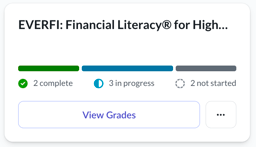
- Go to My Classes
- Select View Class for the class you want to review
- On the course card, select View Grades
This opens the Grades & Progress section for the course, showing grade and completion information for all students in the class.
What you will see in Grades & Progress
Grades are based on student performance on assessments within each course. As students complete lessons and assessments, their scores and progress update automatically in this view.
This view helps you quickly understand how your class is performing overall and identify trends in progress or completion. In the Grades & Progress view, you can review:
- Student names
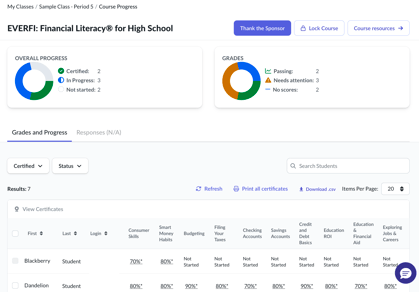
- Assessment scores
- Completion status
- Progress for the selected course
This view helps you quickly understand how the class is performing overall.
Viewing grades for an individual student
If you need more detailed information beyond the class view, you can open Student Details from My Students using the Student Details icon in the Action column. From Student Details, you can review course‑level performance, assessment scores, and individual student progress.
From Student Details, you can:
- Open a specific course
- Review assessment scores
- View attempts and progress history for that student
This is useful when you need to focus on a single student rather than the entire class.
Viewing grades vs editing grades
Viewing grades allows you to review progress and scores without making changes.
If you need to:
- Correct or update a score
- Add a grade due to an issue or exception
- Modify an assessment result
See Editing and Adding Grades for instructions.
Things to keep in mind
- Grades can be reviewed at both the class and student level
- Viewing grades does not change student data
- Any grade changes must be made through the grade‑editing workflow
Related articles
You may also want to review: